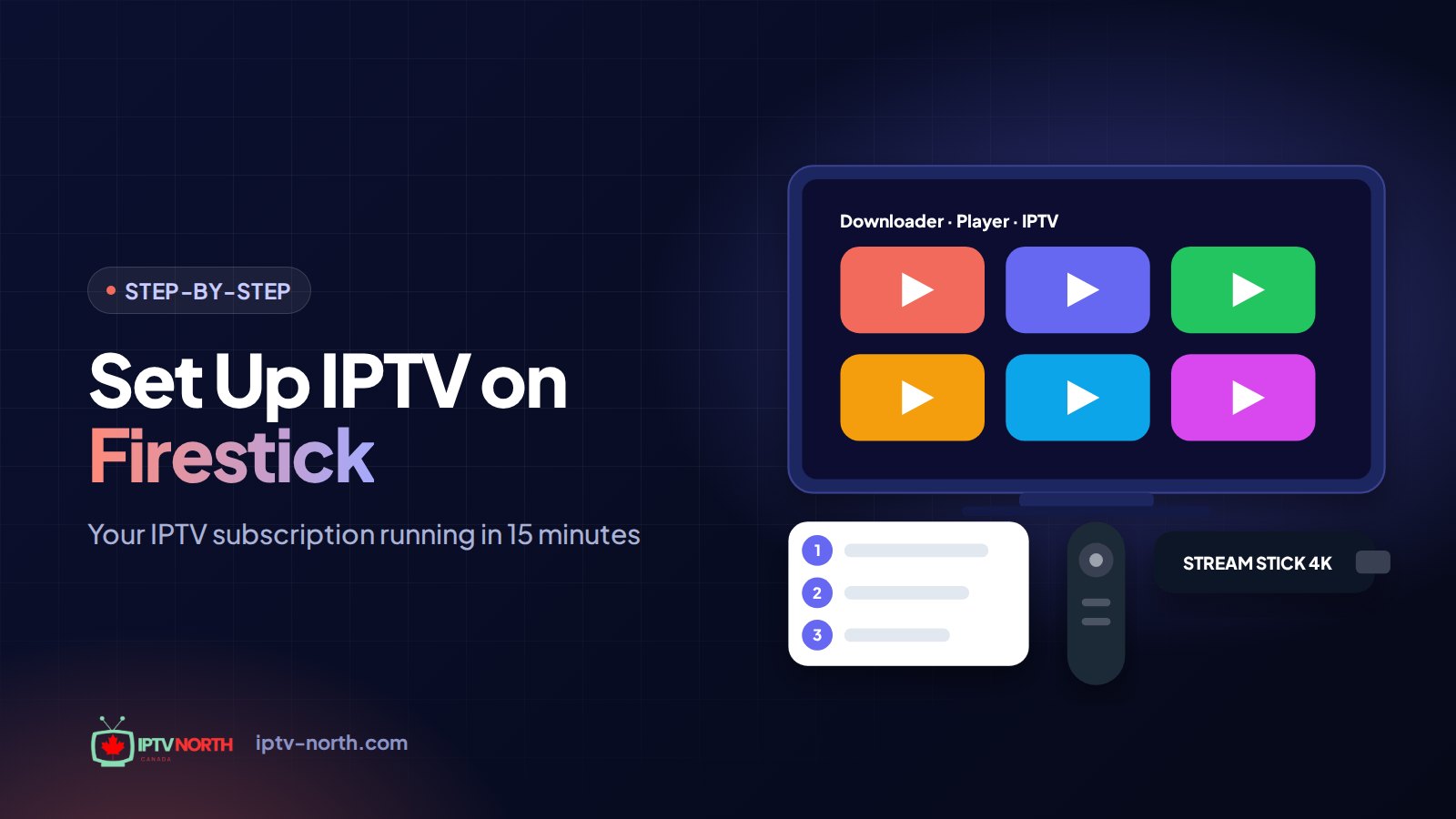
Set Up IPTV on Firestick in Canada: The 15-Minute Plan
The Fire TV Stick is the little device most Canadians reach for when they cancel cable. It plugs into any HDMI port, travels to the cottage in a jacket pocket, and runs every popular IPTV player. What it does not do out of the box is install apps from outside Amazon's store, and that is the only real hurdle when you set up IPTV on a Firestick in Canada.
This guide focuses on the parts that trip people up: unlocking developer options, installing the Downloader app, entering a code to fetch your player, and the first launch with your IPTV North subscription. Grab the remote and your welcome email; you will be watching live TV in about a quarter of an hour.
The short version: enable developer mode → install Downloader → allow it to install apps → enter a code or link to add your player → sign in with your IPTV North credentials → build your favourites.
Checklist: What to Have Ready
| Item | Why it matters |
|---|---|
| Fire TV Stick (HD, 4K or 4K Max) | The 4K models handle 4K/FHD streams more comfortably; the HD model is fine for 1080p |
| Amazon account | Needed to download the Downloader app from the Amazon Appstore |
| Internet connection | Roughly 10 Mbps for HD and 25 Mbps or more for 4K |
| 5 GHz Wi-Fi or an Ethernet adapter | Steadier than 2.4 GHz, especially in apartment buildings |
| IPTV North login | Server URL, username and password from your welcome email or 24-hour trial |
If your stick is brand new, finish Amazon's own setup first (language, Wi-Fi, account sign-in, software update). An up-to-date Fire OS avoids a surprising number of later errors.
Step 1: Turn On Developer Mode
Amazon hides the developer menu on recent Fire OS versions. Here is how to reveal it:
- From the home screen, go to the gear icon (Settings) on the far right.
- Open My Fire TV (called Device or Device & Software on some models).
- Select About.
- Highlight the first line, which shows your stick's name (for example "Fire TV Stick 4K Max").
- Press the select (centre) button seven times in a row. A message confirms that you are now a developer.
- Press Back. A new entry, Developer Options, appears in the My Fire TV menu.
If the message never appears, press a little faster and make sure the device name, not another line, is highlighted.
Step 2: Install the Downloader App
Downloader is a free utility in the Amazon Appstore that fetches files from a web address or a short numeric code.
- Press Home on the remote.
- Open Find (the magnifying glass) and choose Search.
- Type or say "Downloader" and pick the app with the orange icon by AFTVnews.
- Select Get or Download and wait for the install to finish.
- Open Downloader once. When it asks for access to files and media, choose Allow. Dismiss the quick-start tips.
Step 3: Allow Downloader to Install Apps
Now connect the two previous steps:
- Return to Settings → My Fire TV → Developer Options.
- Choose Install unknown apps (older sticks show a single Apps from Unknown Sources toggle instead).
- Find Downloader in the list and set it to On.
On newer Fire OS versions this permission applies to Downloader alone, which is safer than opening the door for every app. You only need to do this once.
Step 4: Use a Downloader Code to Add Your IPTV Player
Downloader's home screen has a single field that accepts either a full web address or a short code. Codes are simply shortcuts to a download link, which saves you from typing long URLs with the remote.
Choosing a player
IPTV North credentials work in the major IPTV players available for Fire TV. The three most common choices:
- TiviMate: a TV-style grid guide, quick zapping and an optional Premium upgrade. In Downloader, enter code 272483. Our TiviMate Android TV guide explains Premium activation.
- V12Mate: a streamlined player; the download link is included in your IPTV North welcome email.
- IPTV Smarters Pro: a simple, menu-driven player with separate live, movie and series sections.
One warning: TiviMate and V12Mate conflict on the same device. Install one or the other, not both. If one is already present, remove it under Settings → Applications → Manage Installed Applications first.
Installing it
- Open Downloader and select the URL/code field.
- Enter the code or paste the link from your email, then choose Go.
- Wait for the download to finish. It usually takes under a minute on a normal connection.
- When Fire OS asks, choose Install.
- After installation, choose Done instead of Open.
- Downloader offers to delete the installer file. Choose Delete, then confirm. Sticks have limited storage, so this housekeeping matters.
Pin the player to the home screen
Press and hold the Home button, choose Apps, highlight your new player and press the menu button (three lines). Select Move to place it in the top row. Now it is one click away every time you turn on the TV.
Step 5: First Launch and Sign-In
Open your player from the apps row. The first screen asks how you want to log in.
- Choose Xtream Codes (sometimes "Login with Xtream Codes API"). It automatically pulls your channel list, categories, TV guide and VOD library.
- Enter the server URL, username and password exactly as written in your IPTV North email. The on-screen keyboard makes typos easy; slow down on capitals and lookalike characters.
- Give the playlist or profile a name such as "IPTV North".
- Select Add or Next and wait while the player loads your channels. With 25,000+ live channels and 120,000+ movies and series, the first load takes a little longer than later ones.
If you received an M3U link instead, choose the M3U or "Load playlist" option and paste it. You may then need to add the guide address under the player's EPG settings.
Make it feel like home
Before you settle in, spend two minutes on these first-launch tweaks:
- Favourites: long-press TSN, Sportsnet, CBC, CTV, RDS, TVA or whatever your household watches most, and add them to Favourites.
- Hide categories: remove channel groups in languages or regions you never watch; the guide loads faster.
- Time zone: check that tonight's schedule matches the real start times. If the Canucks game shows three hours off, adjust the EPG time offset in the player's settings.
- Decoder: in the player's settings, choose the hardware decoder or ExoPlayer where available; it handles HD and 4K sports more smoothly on Fire TV.
Keeping Your Firestick Fast
Fire TV Sticks are small computers with modest memory. A little maintenance goes a long way.
- Switch to 5 GHz. In Settings → Network, join your router's 5 GHz network. In a busy condo building the 2.4 GHz band is crowded with neighbours' signals.
- Try an Ethernet adapter. For the main TV, an Amazon-compatible Ethernet adapter gives the steadiest connection for playoff nights.
- Clear the cache monthly. Settings → Applications → Manage Installed Applications → your player → Clear cache.
- Restart weekly. Hold Select + Play/Pause for about five seconds, or use Settings → My Fire TV → Restart.
- Uninstall what you don't use. Old apps and leftover installers eat into the limited storage.
- Update Fire OS. Settings → My Fire TV → About → Check for updates.
If streams slow down mainly in the evening, your internet provider may be managing video traffic at peak times. A VPN with Canadian servers can help in that case, though most viewers never need one. See our guide on whether you need a VPN for IPTV.
When Something Goes Wrong
Downloader says the download failed
Check the code or link for typos, confirm the stick is online, and make sure Install unknown apps is turned on for Downloader specifically. Restarting the stick and trying again solves most one-off failures.
"App not installed"
Usually a storage problem or a conflicting app. Free up space by removing unused apps, and uninstall TiviMate if you are installing V12Mate (or vice versa).
Login rejected or "authentication failed"
Re-enter your server URL, username and password carefully and confirm your plan or trial is active. Copying details from the email on a phone and reading them character by character helps.
The player opens, then closes
Go to Manage Installed Applications, select the player, choose Force stop, then Clear cache, and reopen it. If it still crashes, uninstall and reinstall with Downloader.
Constant buffering
Run a speed test with a browser or speed-test app on the stick. Below 10 Mbps, move the router closer, switch to 5 GHz or use Ethernet. Our IPTV buffering fix guide walks through the rest.
Our Canadian support team is here 24/7 by chat or at service@iptv-north.com if you would rather have someone guide you through it.
A Quick Word on Legality
IPTV is a delivery technology, the same kind of technology Canadian telecoms use for their own TV services. Whether a particular service is legal depends on the rights to the content it distributes, not on the device or app. Our article on how IPTV legality works in Canada covers the general picture; it is information, not legal advice.
Frequently Asked Questions
What is the Downloader code for TiviMate on Firestick?
Enter 272483 in Downloader's address field to reach the TiviMate download. Remember that TiviMate and V12Mate cannot be installed together.
Is enabling developer options on my Fire TV Stick safe?
Yes, provided you only install apps from sources you trust. Giving the install permission to Downloader alone, rather than to every app, keeps the risk low.
Do I have to repeat these steps after a Fire OS update?
Normally no. Developer mode and the Downloader permission usually survive updates. If an update resets them, repeat Steps 1 and 3; your installed player and login stay in place.
Can I move my Firestick between the house and the cottage?
Yes. Plug it into the cottage TV, connect it to the local Wi-Fi and open your player. Your IPTV North account comes with you; just keep in mind a standard plan streams on one device at a time.
How much does IPTV North cost for a Firestick?
Plans cover one device: $19 for 1 month, $29 for 3 months, $49 for 6 months and $79 for 12 months (CAD), paid by Interac e-Transfer with no contract.
Can I test my Firestick setup before paying?
Yes. The 24-hour trial costs $2.99, paid by Interac e-Transfer, so you can install everything, sign in and confirm the quality on your own network first.
Finish Your IPTV Firestick Setup in Canada and Start Streaming
Once you set up IPTV on your Firestick in Canada, it behaves like a compact cable box with far more choice: live NHL, CFL and NFL, Canadian news, and a deep VOD library, all without a contract. Check the full installation guide for your other devices and compare IPTV North plans when you are ready.
Select number of devices
1 Month
High Performance Server
$19CAD
≈ $19.00 / month
- 1 Device
- 4K Ultra HD Streaming
- 25,000+ Live Channels
- 120,000+ Movies & TV Shows
- Instant VOD Access
- Smart EPG & Catch-Up TV
- 24/7 Canadian Support
- Multi-Device Compatibility
3 Months
High Performance Server
$29CAD
≈ $9.67 / month
- 1 Device
- 4K Ultra HD Streaming
- 25,000+ Live Channels
- 120,000+ Movies & TV Shows
- Instant VOD Access
- Smart EPG & Catch-Up TV
- 24/7 Canadian Support
- Multi-Device Compatibility
6 Months
High Performance Server
$49CAD
≈ $8.17 / month
- 1 Device
- 4K Ultra HD Streaming
- 25,000+ Live Channels
- 120,000+ Movies & TV Shows
- Instant VOD Access
- Smart EPG & Catch-Up TV
- 24/7 Canadian Support
- Multi-Device Compatibility
12 Months
High Performance Server
$79CAD
≈ $6.58 / month
- 1 Device
- 4K Ultra HD Streaming
- 25,000+ Live Channels
- 120,000+ Movies & TV Shows
- Instant VOD Access
- Smart EPG & Catch-Up TV
- 24/7 Canadian Support
- Multi-Device Compatibility