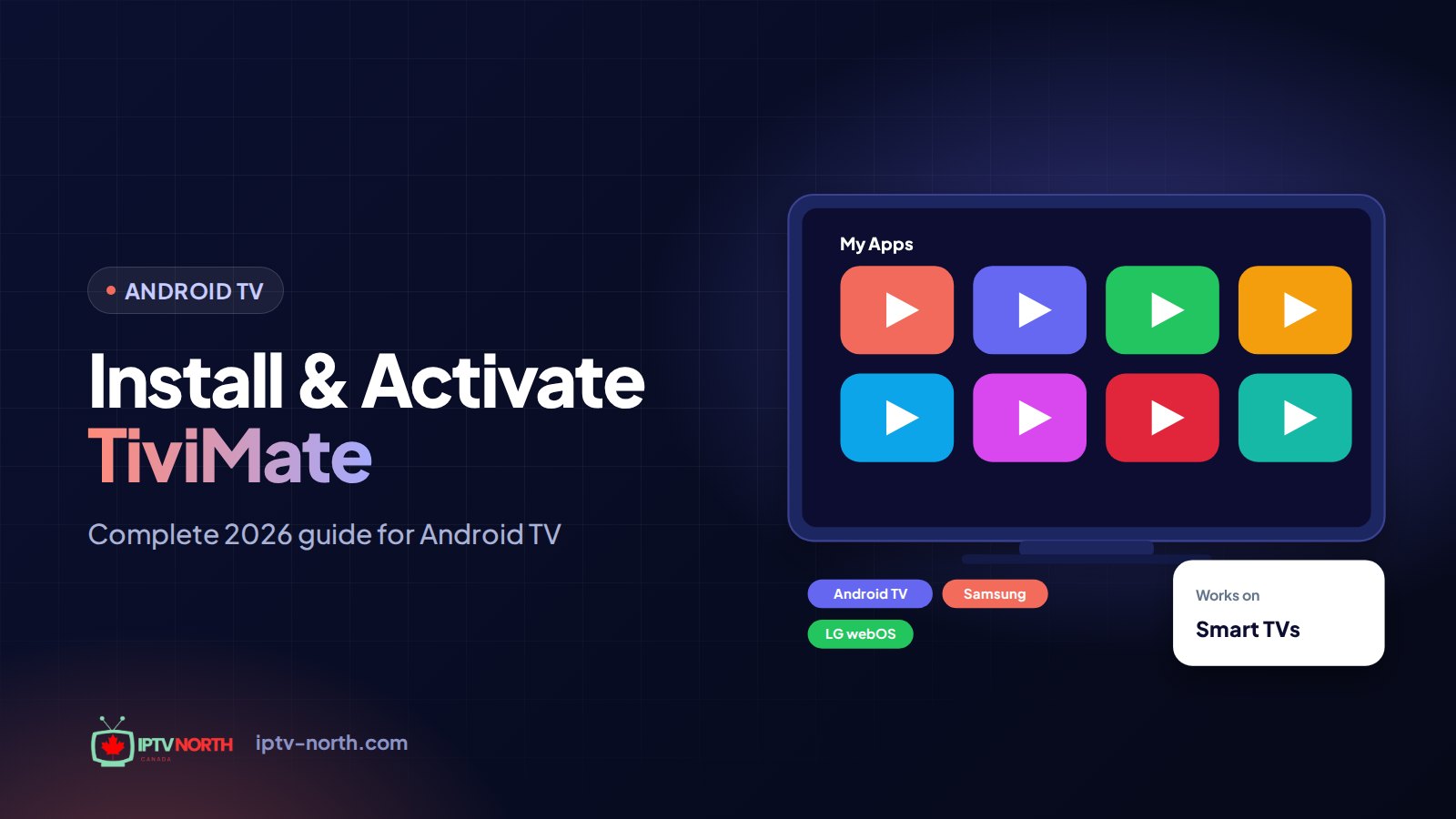
From Unboxing to Puck Drop: Install and Activate TiviMate on Android TV
You just plugged in a new Chromecast with Google TV, unboxed an Nvidia Shield, or finally used the smart features on that Sony or TCL television. Now you want the channel guide to look and feel like the cable box you cancelled. This is the complete walkthrough to install and activate TiviMate on Android TV and Google TV devices, from the first download to the Premium unlock and the settings that make Saturday-night hockey look its best.
TiviMate is a player built for the big screen and the remote control. It carries no channels itself; it displays the content from your IPTV North subscription, which includes 25,000+ live channels, 120,000+ movies and series, and 4K/FHD streams. Plan on 10 to 15 minutes for the whole setup.
Which Android TV Devices Run TiviMate?
Most devices running Android TV or Google TV are compatible. Here are the ones Canadian viewers use most often:
| Device type | Examples | Notes |
|---|---|---|
| Streaming sticks and dongles | Chromecast with Google TV, Onn 4K, Xiaomi TV Stick | Compact, affordable, good for bedrooms and cottages |
| Set-top boxes | Nvidia Shield, Xiaomi Mi Box, MECOOL | More memory and storage; best for recording with Premium |
| Smart TVs with Google TV or Android TV | Sony, TCL, Hisense, Philips models | No extra hardware; performance depends on the TV's chip |
| IPTV-focused boxes | BuzzTV, Formuler | Android-based; many owners prefer their built-in apps |
To confirm your system version, open Settings → Device Preferences → About. TiviMate needs a reasonably modern Android TV build; anything sold in recent years qualifies.
Owners of an Amazon Fire TV Stick follow a slightly different path through Fire OS; our Firestick setup guide covers it step by step.
Pre-Flight Checklist
Tick these off before you start and nothing will interrupt you mid-install:
- IPTV North login. Your welcome email contains a server URL, a username and a password. No account yet? Start the 24-hour trial for $2.99; pay by Interac e-Transfer.
- Internet speed. At least 10 Mbps for HD, more for 4K. A network cable into the box beats Wi-Fi; if you must use wireless, pick the 5 GHz band.
- A few hundred megabytes of free storage. Check under Settings → Device Preferences → Storage on low-cost sticks.
- No V12Mate on the device. TiviMate and V12Mate conflict and cannot coexist. If V12Mate is installed, remove it first under Settings → Apps.
Installation Option 1: Google Play Store
When TiviMate is listed in your device's store, this is the fastest and safest route, and updates will arrive automatically.
- From the home screen, open Google Play (on Google TV, you can also use the Search tab).
- Type "TiviMate" with the remote or say it into the voice-search button.
- Select TiviMate IPTV Player (orange-and-white TV icon) and choose Install.
- When the download completes, choose Open, or find the tile later under Apps.
If the store says the app is not available, or search returns nothing, try searching for "TiviMate IPTV". Still nothing? Your region or device model may hide it. Move on to option 2.
A failed install is usually fixed by updating Google Play itself, clearing space in storage, or restarting the device.
Installation Option 2: Sideload With Downloader
The Downloader app lets you fetch an APK straight onto the TV. The resulting app is identical to the store version.
Prepare the device
- In Google Play, install Downloader by AFTVnews (orange icon). It is free.
- Open Settings → Device Preferences → Security & restrictions (the menu name varies by manufacturer; look for Install unknown apps).
- Find Downloader in the list and switch it on. This grants permission to that single app rather than to everything.
- Launch Downloader once and choose Allow when it requests access to storage.
Fetch and install TiviMate
- In Downloader's address field, enter the code 272483 and select Go. The code takes you to the TiviMate APK. A full URL also works if you have one.
- Accept the privacy notice if prompted.
- When Android asks, choose Install. It takes well under a minute.
- Select Done rather than Open, then choose Delete when Downloader offers to remove the installer file. That frees space on small sticks.
- Return to Apps; TiviMate is now listed. Long-press it and choose Move or Add to favourites to pin it to your home row.
Connecting Your IPTV North Account
Xtream Codes: the recommended login
- Launch TiviMate and choose Add playlist. If you have used it before, go to Settings → Playlists → Add playlist.
- Select Xtream Codes (sometimes shown as "Xtream Codes API" or "Login with Xtream Codes").
- Enter your server URL, username and password. The on-screen keyboard is slow, so double-check each character; zero versus letter O and the number one versus lowercase L are the classic mistakes.
- Choose Next. TiviMate connects, then downloads the channel list, categories, guide data and VOD catalogue. This takes between 30 seconds and a couple of minutes depending on your connection.
- Name the playlist (for example "IPTV North") and finish.
Typing long passwords with a remote is tedious. The TiviMate Companion app on your phone can act as a keyboard, which makes this step much faster.
M3U as an alternative
Prefer an M3U link? Select M3U playlist and paste the address. You will then add the guide yourself under Settings → EPG → Add source using the XMLTV address provided by support. Xtream Codes does all of that for you, so use it unless you have a specific reason not to.
Let the guide finish loading
On the very first login, TiviMate downloads several days of program listings for every channel. With a lineup this large, allow a few minutes and keep the app open. Later refreshes are faster and happen in the background.
Building a Game-Night Channel Lineup
Out of the box you will see categories such as Canada, Sports, News, Movies and International. The fastest way to make TiviMate yours is a Favourites group:
- Highlight a channel such as TSN 1.
- Press and hold OK on the remote to open channel options.
- Choose Add to favourites.
- Repeat for the other TSN feeds, the Sportsnet regionals, RDS and RDS 2, CBC, TVA, CTV and your local news.
Favourites appears at the top of the channel list, so on playoff nights you jump from the Flames game on Sportsnet West to the Canadiens on RDS in two clicks. You can also hide entire groups you never watch under Settings → Playlists → your playlist → Groups, which speeds up browsing and reduces the amount of guide data the box processes.
Activating TiviMate Premium
The free version plays live TV and VOD with a full guide. Premium is a separate purchase from the TiviMate developer; it is not included in, and not sold by, your IPTV plan. Here is how activation works.
Step 1: Install TiviMate Companion on your phone
On an Android phone, open Google Play and search for TiviMate Companion. Install it and open it.
Step 2: Create your TiviMate account
Inside Companion, register with an email address and password. Use an address you check; it becomes your Premium login.
Step 3: Buy Premium
Choose a Premium option inside Companion and complete the purchase. Pricing and billing terms are set by the TiviMate developer and are shown in the app before you pay.
Step 4: Sign in on the TV
On your Android TV, open TiviMate and go to Settings → Premium account (sometimes labelled Account). Sign in with the same email and password from Companion. Premium features unlock immediately, with no restart needed.
Step 5: Add more devices if needed
A Premium account can be used on several devices, within the limit set by the developer. Sign in on each one with the same credentials.
Using Companion as a Remote and Keyboard
The Companion app is more than a checkout page. Once your phone and TV are on the same home network, it can control TiviMate directly:
- Keyboard input. Type server addresses, passwords and search terms on your phone instead of pecking letters with the remote. This alone saves minutes during setup.
- Remote control. Change channels, open the guide and adjust volume from the couch when the physical remote has slipped between the cushions again.
- Account management. Check your Premium status, see which devices are signed in and sign out a TV you no longer use, all from your phone.
To pair, open Companion, make sure it shows the same TiviMate account as your TV, and select your Android TV device from the list. If it does not appear, confirm both devices are on the same Wi-Fi network (not a guest network) and restart TiviMate on the TV.
iPhone owners can check the App Store for a Companion version; availability of individual features may differ from Android.
What Premium Adds, and Who Needs It
| Premium feature | What it does | Most useful for |
|---|---|---|
| Recording | Saves live channels to a USB drive or network storage, scheduled from the guide | Shift workers, parents catching games after bedtime |
| Catch-up | Replays recently aired programs on channels that support it | Anyone who missed the first period |
| Reminders | Alerts you shortly before a selected show or game starts | Fans who never want to miss a kickoff |
| Multiple playlists | Keeps more than one IPTV account in the same app | Households with separate accounts, resellers |
| Parental control | Locks chosen channel groups behind a PIN | Families with young children |
| Extra customization | More themes, layouts and display options | Viewers who like to fine-tune the look |
If you only watch live and use the guide to see what's on, the free version is enough. If you want to record a Grey Cup party replay, set reminders for NHL puck drops or lock channels away from kids, Premium pays for itself quickly.
Settings Worth Changing on Day One
TiviMate works fine with defaults, but these adjustments make a visible difference on Android TV.
Video player
Go to Settings → Player. Auto lets TiviMate choose the decoder; ExoPlayer is often the smoothest for sports feeds with changing bitrates. If a channel stutters, compare both.
Guide refresh and time zone
Under Settings → EPG, keep automatic updates on with a daily interval. Check the time offset too. Canada spans Newfoundland, Atlantic, Eastern, Central, Mountain and Pacific time; an incorrect offset makes a 7 p.m. puck drop appear at the wrong hour. After changing it, force a guide update.
Buffer size
If your connection fluctuates, a slightly larger buffer in the player settings can absorb short dips. It adds a moment of delay when changing channels, which most viewers never notice.
Wired over wireless
Android TV boxes like the Shield have an Ethernet port; use it for the main TV. For sticks without one, a USB Ethernet adapter is an inexpensive upgrade that removes Wi-Fi interference from neighbouring condos.
Auto-start
In Settings → General, you can make TiviMate launch when the device powers on and open on the last channel watched. It makes the box feel like a traditional cable receiver for less tech-minded family members.
Getting the Most From 4K and Surround Sound
A good TV deserves a correctly configured player. These options sit in Settings → Player and in your device's own display menu.
- Match the frame rate. Enable AFR (automatic frame rate) in TiviMate if your device supports it. Hockey and football broadcast at a different frame rate from many movies, and matching it removes the slight judder you may notice during fast skating or a long pass.
- Check the output resolution. On Google TV devices, open Settings → Display & sound and confirm the box outputs 4K when your TV supports it. A stick left at 1080p will never show 4K streams at full detail.
- Audio passthrough. If you have a soundbar or receiver, turn on passthrough so surround tracks reach it untouched. If a channel goes silent, switch passthrough off for that session; not every stream carries a compatible audio format.
- Deinterlacing. Some older news and specialty channels are broadcast interlaced. Leaving deinterlacing on Auto smooths those lines without affecting modern HD feeds.
Remember that 4K needs bandwidth. A household running two HD streams while someone downloads a game update can squeeze a 4K feed; if that happens, drop the channel to its FHD version for the evening.
Recording With Premium: Storage Tips
Recording is the Premium feature people use the most, and it depends on storage.
Where recordings go
TiviMate can write to a USB flash drive or hard drive plugged into the box, or to a network folder (NAS) on your home network. Internal storage on streaming sticks is small, so an external drive is almost always the better choice.
Setting it up
- Connect the drive and let Android recognize it. If asked, format it as device storage or keep it portable; portable is easier to read on a computer later.
- In TiviMate, open Settings → Recording and choose the drive or network folder as the destination.
- In the guide, highlight an upcoming program and select Record. For series, choose the option to record every episode.
How much space you need
An HD hockey game takes several gigabytes, and 4K much more. A 64 GB flash drive holds a handful of games; a larger external hard drive is better for a whole season of Leafs or Jets broadcasts. Delete finished recordings regularly under the Recordings tab.
One Account, Several TVs in the House
Many Canadian homes have an Android TV box in the living room and a Google TV stick in the bedroom or basement. Setting TiviMate up on each one is quick once you have done it once:
- Install TiviMate on each device using the same method.
- Add the same IPTV North playlist with your credentials.
- Sign in to your TiviMate Premium account on each TV if you bought Premium.
Keep in mind that a standard IPTV North plan streams on one device at a time. Watching on the bedroom TV while the living-room box is playing will interrupt one of them. If your household needs simultaneous streams, ask our team about extra connections; resellers and larger households can also look at the reseller program.
Troubleshooting on Android TV
| Symptom | Probable cause | Fix |
|---|---|---|
| Login error, no channels | Typo in credentials or inactive account | Edit the playlist and retype each field; confirm your plan or trial is active |
| Channels play, guide is blank | Guide still loading or channel ID mismatch | Settings → EPG → update; for single channels, set the EPG ID manually |
| Stutter during live sports only | Wi-Fi congestion or evening throttling | Switch to Ethernet, test ExoPlayer, try a VPN on a Canadian server |
| App freezes after long use | Cache build-up, low memory | Clear cache, close background apps, unplug the box for 30 seconds |
| Wrong show times | Time offset incorrect | Correct the offset, then force an EPG refresh |
Fixing a single channel with no guide data
Long-press the channel, choose Edit channel, then open the EPG ID field. Search for the channel's name (for example "TSN 1") and pick the correct listing. The schedule appears at the next refresh.
When buffering follows the clock
Streams that are fine in the afternoon but stall between 7 and 11 p.m. usually point to network congestion on your ISP's side. Test your speed at speedtest.net during the problem window, then read our detailed buffering fix guide. A VPN can help if your provider is shaping video traffic, as explained in our article on VPNs for IPTV in Canada.
Last-resort reset
If crashes continue, uninstall TiviMate, restart the device and reinstall it. Your Premium status stays attached to your TiviMate account, so you simply sign in again afterwards.
Our Canadian support team is available 24/7 by chat and at service@iptv-north.com if you would like someone to walk through it with you.
Frequently Asked Questions
Do I need TiviMate Premium to watch IPTV North on Android TV?
No. The free version plays all live channels and VOD with a full guide. Premium adds recording, catch-up, reminders, multiple playlists and parental locks.
Is Downloader code 272483 safe to use?
The code simply points Downloader to the TiviMate APK download. As with any sideloaded file, make sure the app you end up with is the genuine TiviMate IPTV Player, and delete the installer afterwards.
Can I run TiviMate and IPTV Smarters on the same box?
Yes. They coexist without problems, and many people keep Smarters as a backup player. The only known conflict is between TiviMate and V12Mate.
Does TiviMate work on Google TV the same way as on Android TV?
Yes. Google TV is built on Android TV, so installation, login and Premium activation are the same. Only the home-screen layout differs.
Why do some channels show catch-up and others don't?
Catch-up depends on whether the channel's stream supports it. TiviMate Premium shows a catch-up marker in the guide for supported channels only.
How do I keep TiviMate up to date?
Store installs update automatically if auto-updates are on. For Downloader installs, repeat the Downloader steps when a new version is released; the update installs over the existing app and keeps your settings.
Can one IPTV North plan cover the Android TV and my phone?
The same login works on both, but a standard plan streams on one device at a time. Contact support if you need simultaneous connections.
Ready to Install and Activate TiviMate on Android TV?
Once you install and activate TiviMate on Android TV, your box becomes a genuine cable replacement: a clean guide, quick channel changes, and every NHL, CFL and NFL broadcast one click away. Pair it with an IPTV North plan (from $19 for a month to $79 for a year, no contract, paid by Interac e-Transfer) and see the rest of our installation guides for the other screens in your home.
Select number of devices
1 Month
High Performance Server
$19CAD
≈ $19.00 / month
- 1 Device
- 4K Ultra HD Streaming
- 25,000+ Live Channels
- 120,000+ Movies & TV Shows
- Instant VOD Access
- Smart EPG & Catch-Up TV
- 24/7 Canadian Support
- Multi-Device Compatibility
3 Months
High Performance Server
$29CAD
≈ $9.67 / month
- 1 Device
- 4K Ultra HD Streaming
- 25,000+ Live Channels
- 120,000+ Movies & TV Shows
- Instant VOD Access
- Smart EPG & Catch-Up TV
- 24/7 Canadian Support
- Multi-Device Compatibility
6 Months
High Performance Server
$49CAD
≈ $8.17 / month
- 1 Device
- 4K Ultra HD Streaming
- 25,000+ Live Channels
- 120,000+ Movies & TV Shows
- Instant VOD Access
- Smart EPG & Catch-Up TV
- 24/7 Canadian Support
- Multi-Device Compatibility
12 Months
High Performance Server
$79CAD
≈ $6.58 / month
- 1 Device
- 4K Ultra HD Streaming
- 25,000+ Live Channels
- 120,000+ Movies & TV Shows
- Instant VOD Access
- Smart EPG & Catch-Up TV
- 24/7 Canadian Support
- Multi-Device Compatibility