
Choose your device and follow along.
Simple, illustrated walkthroughs to get your IPTV subscription running on all the popular devices. In most cases you'll be watching in under 5 minutes.
Please note: what you buy from us is the IPTV subscription (live channels, movies and series). The player app is a separate piece of software: V12Mate costs nothing on Fire TV and Android, while a few other apps ask for a small licence fee once their trial ends.
2. Follow the steps
Fire TV Stick setup guide
Fire TV Stick, Fire TV Stick 4K, Fire TV Cube
Install the free V12Mate player with the Downloader app, then log in with your IPTV North username and password.
If TiviMate is already installed on your Fire TV, uninstall it first — otherwise V12Mate will not install.
App: V12MateFree
- Step 1
Install the Downloader app
- 1
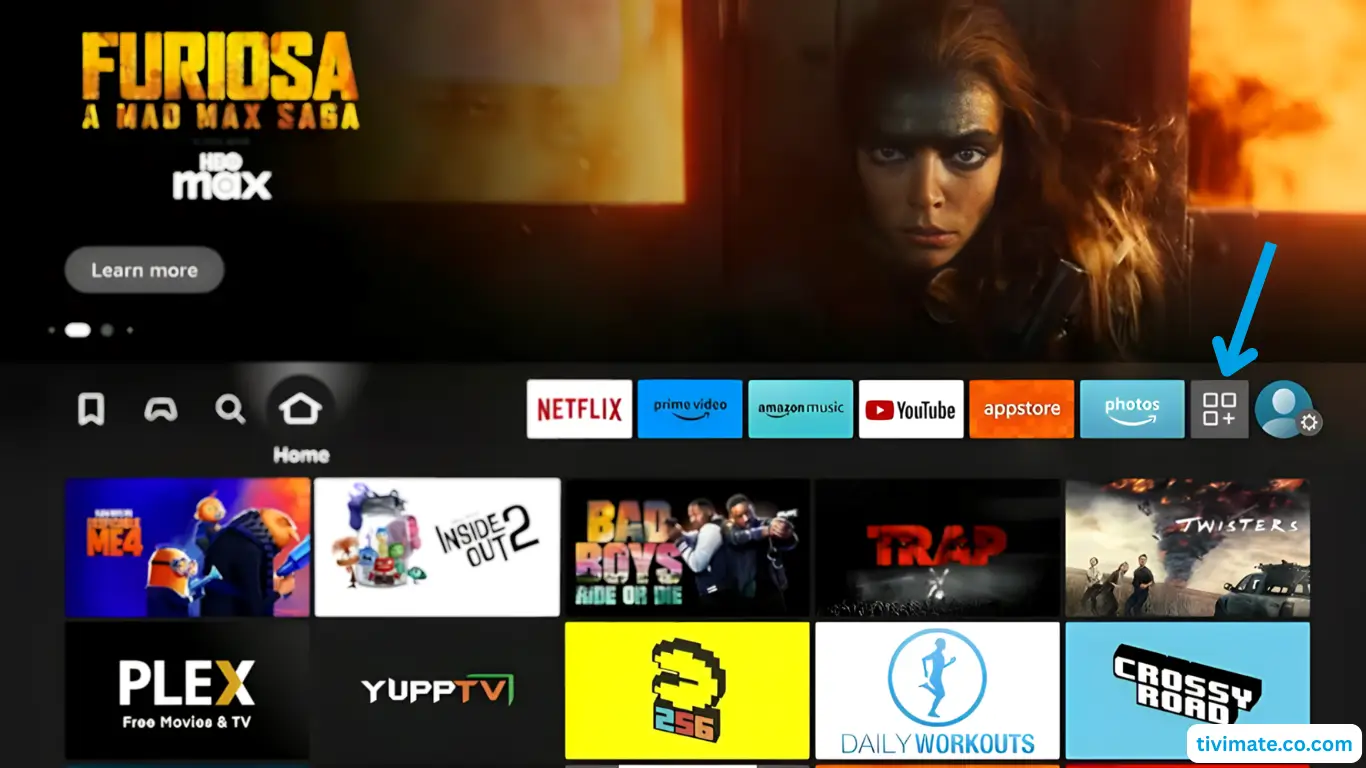
Go to My Apps
From the Fire TV home screen, open My Apps.
- 2
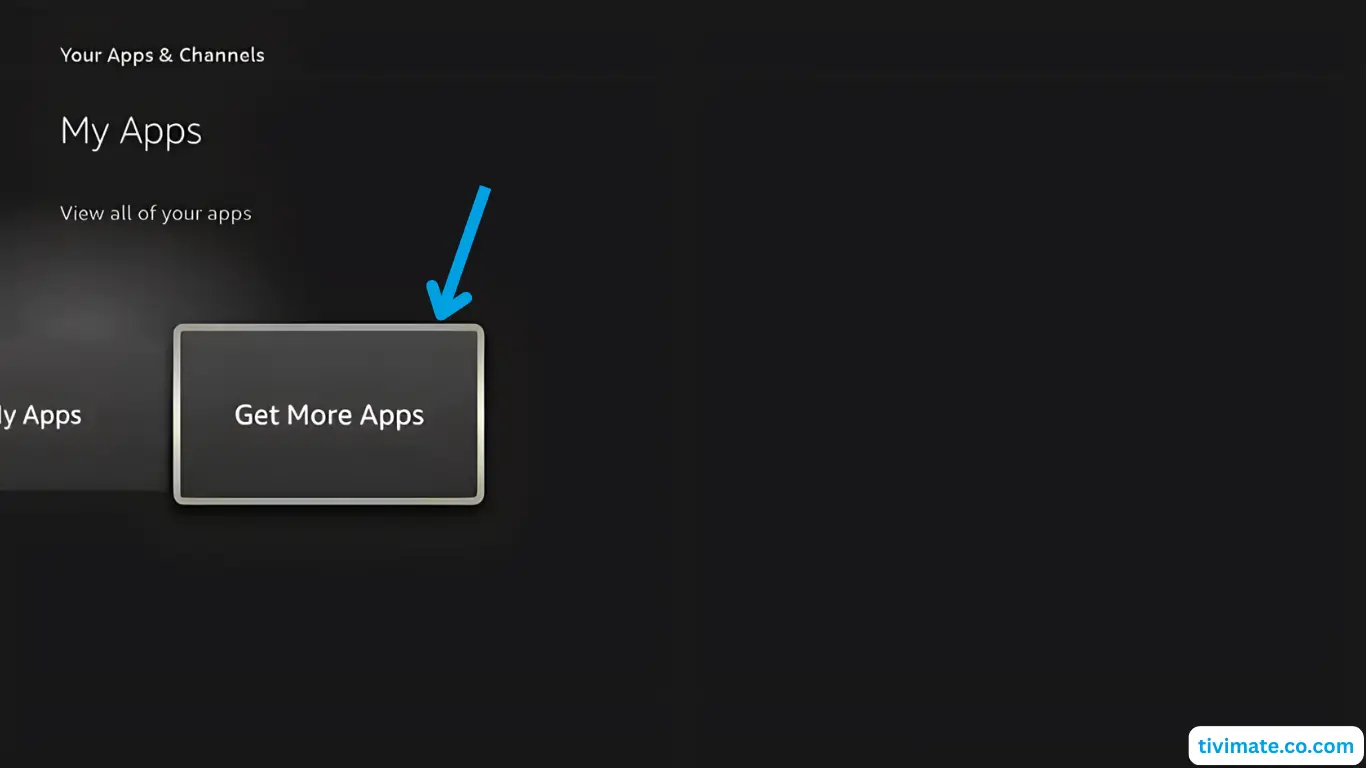
Select Get more apps
Open the app store section.
- 3
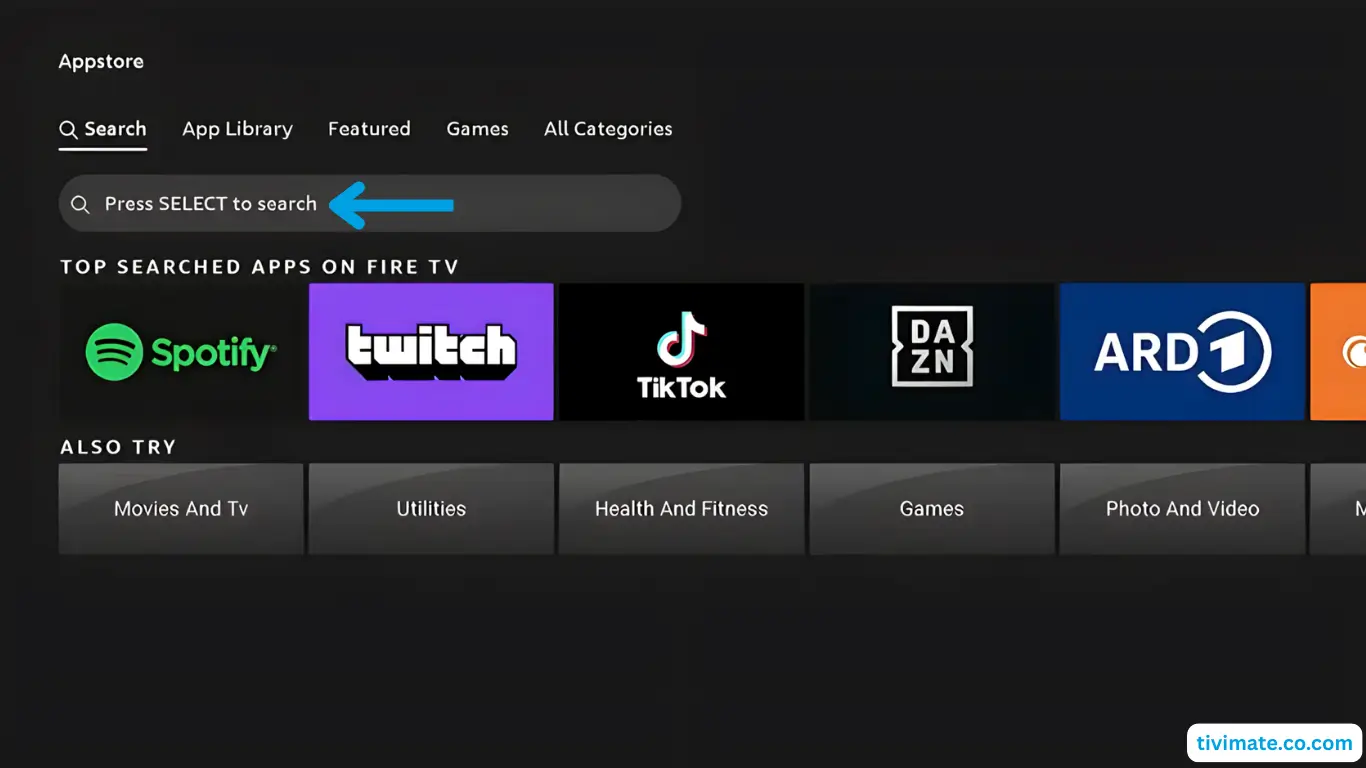
Search for Downloader
Select Search, press Down then OK, and start typing Downloader.
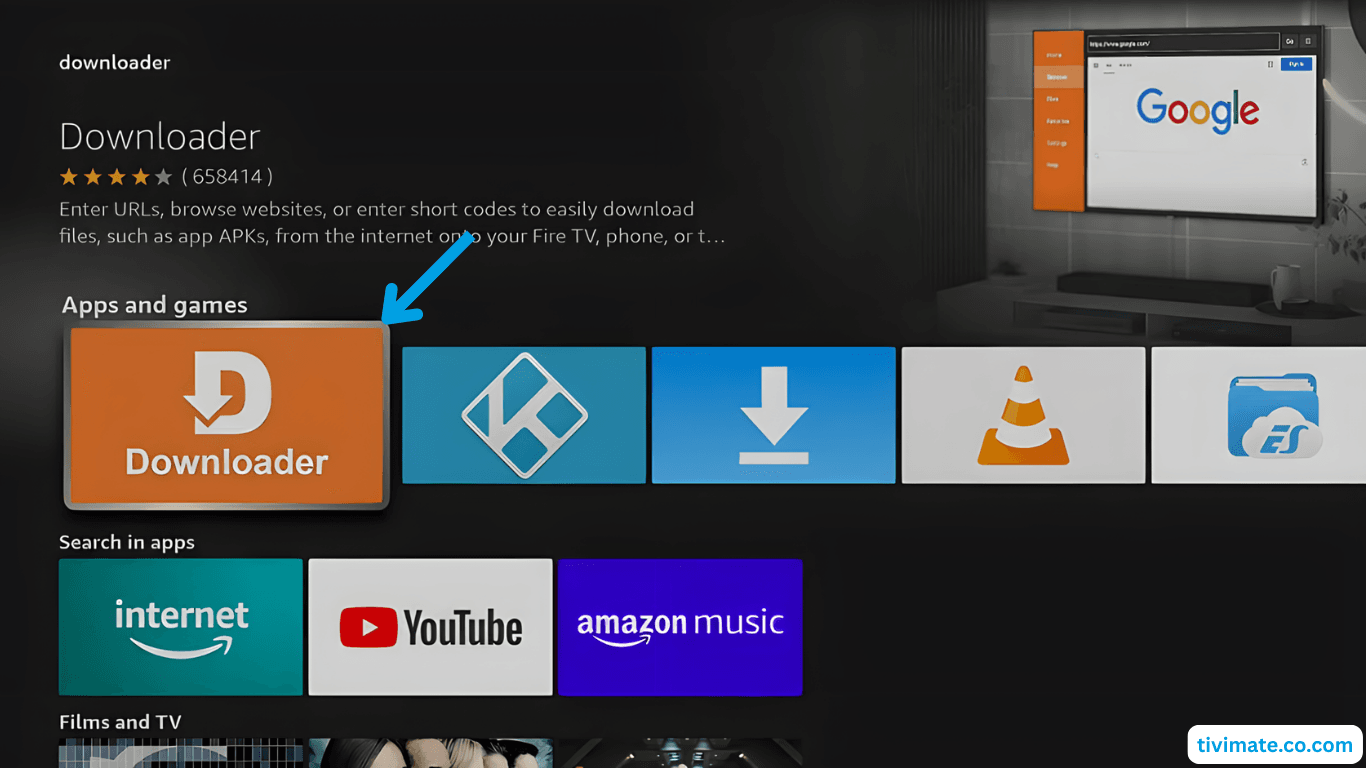
- 4
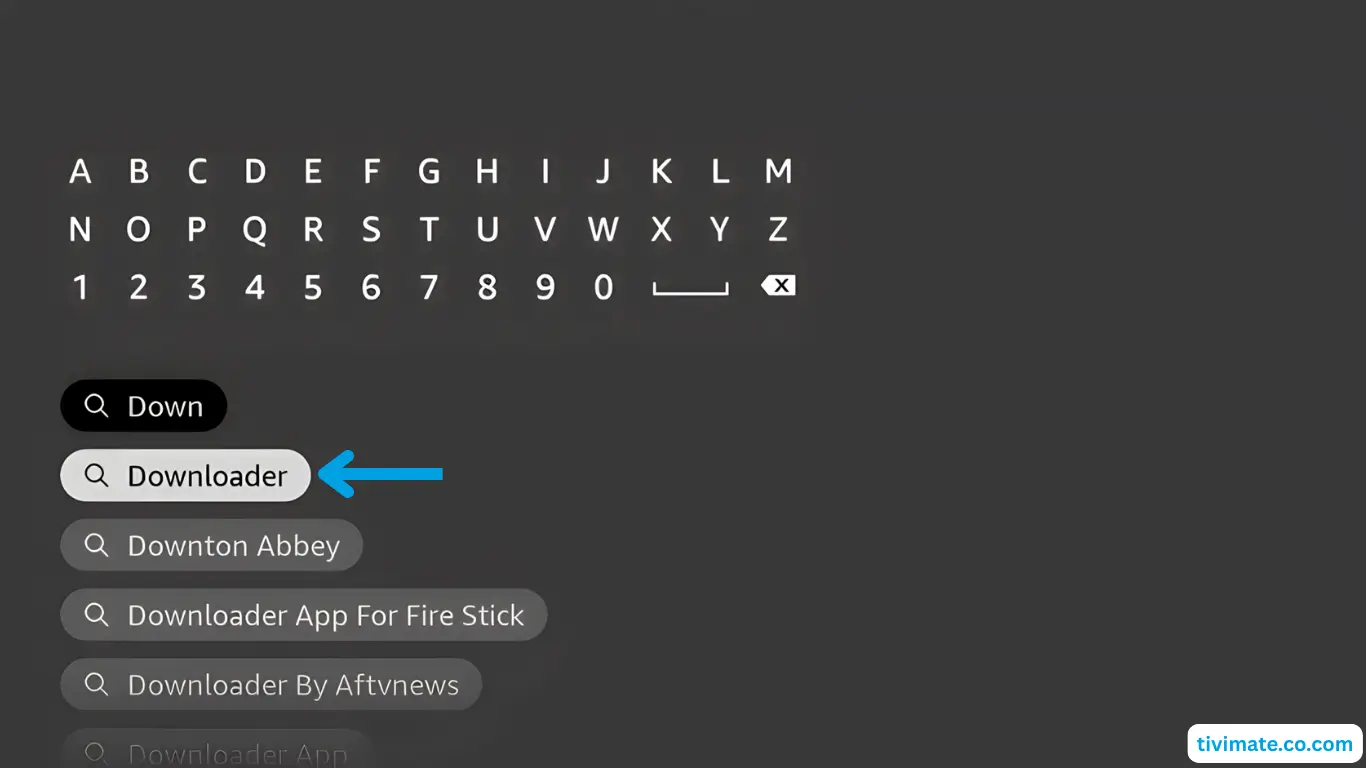
Open the Downloader app page
Select Downloader in the results and press OK.
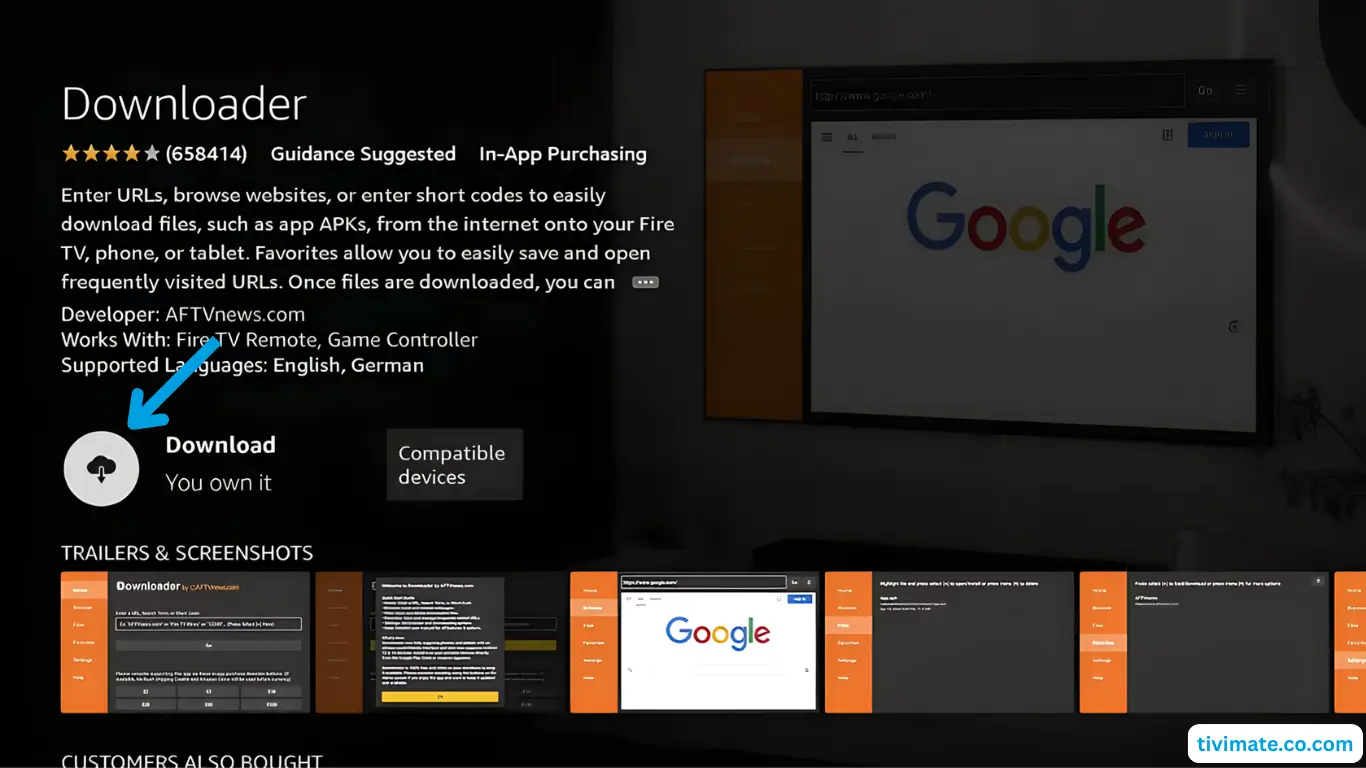
- 5
Download and install
Choose Download and wait for the installation to finish.
- 6
Go back Home
Do not open Downloader yet — press Back to return to the Home screen.
- 1
- Step 2
Allow apps from unknown sources
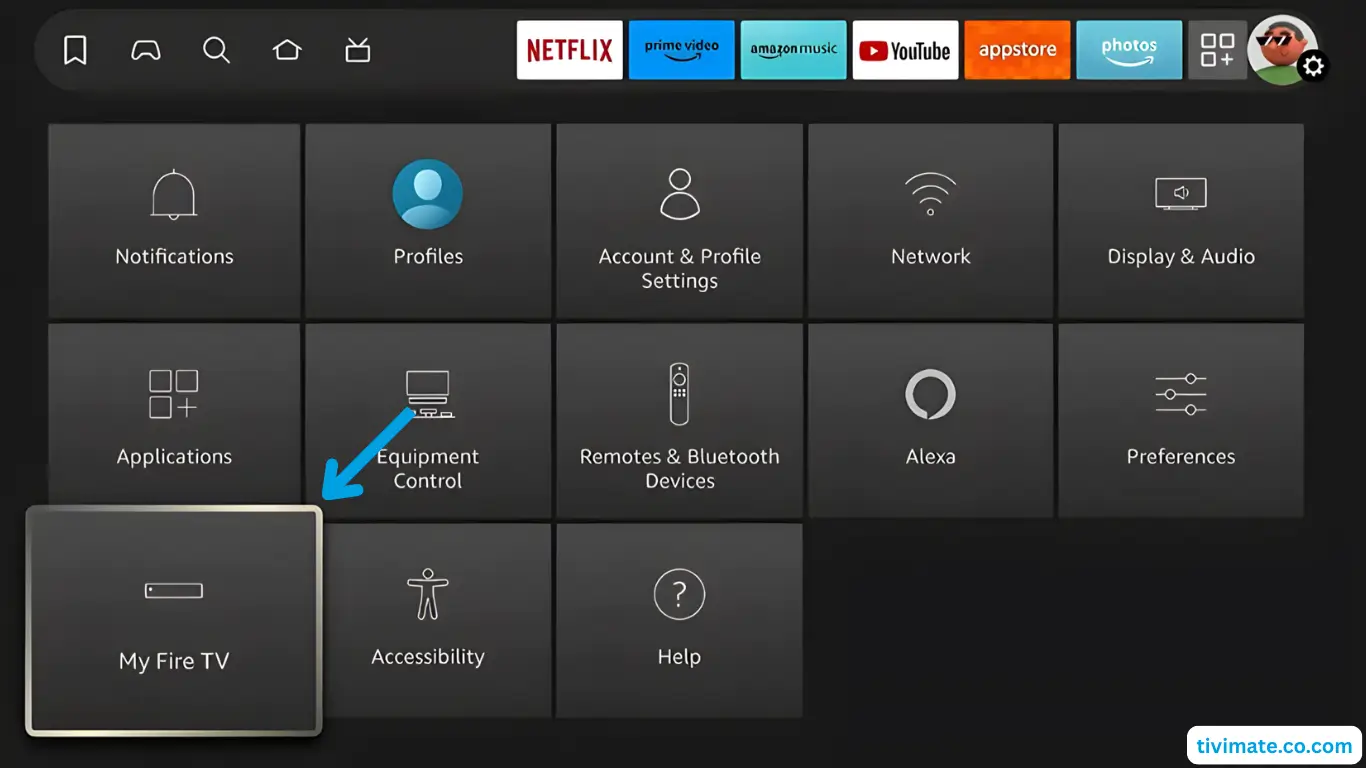
- 7
Open My Fire TV
Go to Settings → My Fire TV.
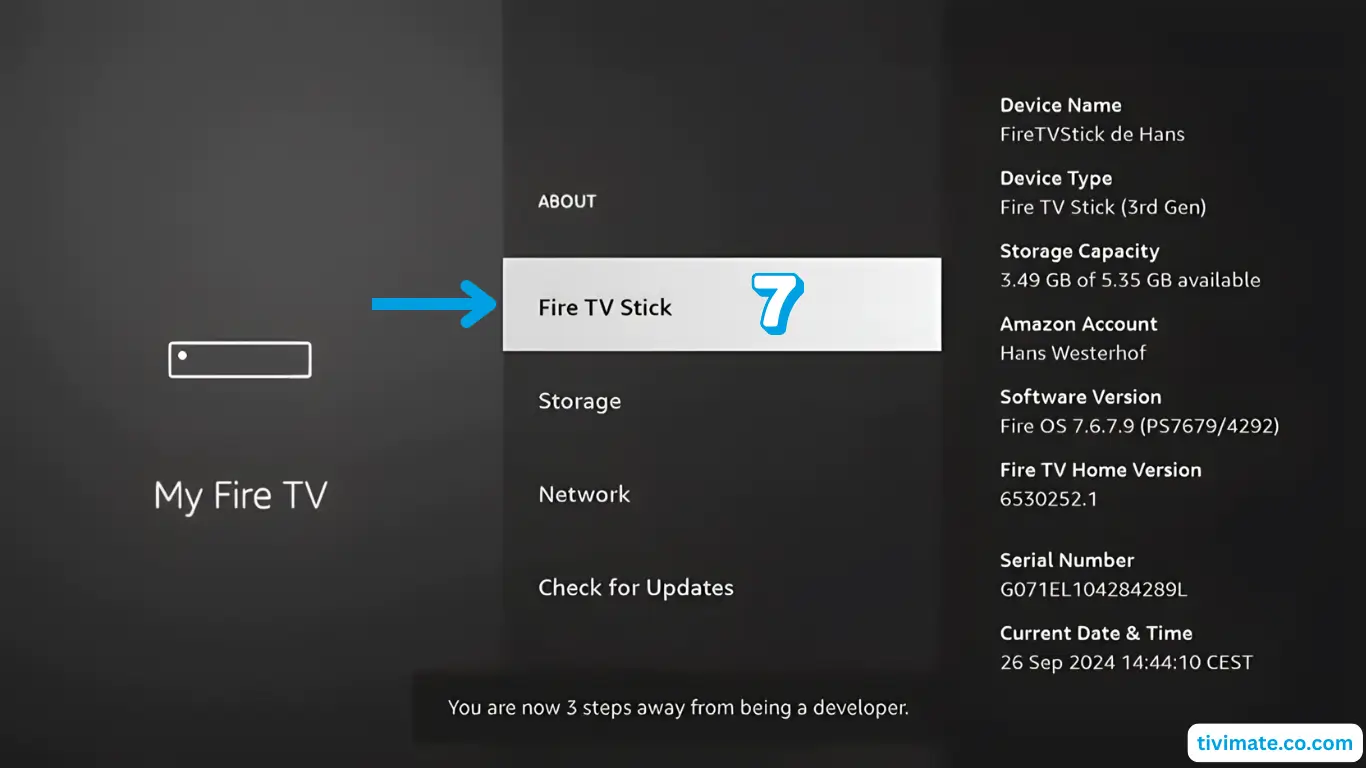
- 8
Unlock Developer Options
Open About and click Fire TV Stick 7 times.
- 9
Turn on ADB debugging
Press Back → Developer Options and switch ADB debugging to On.
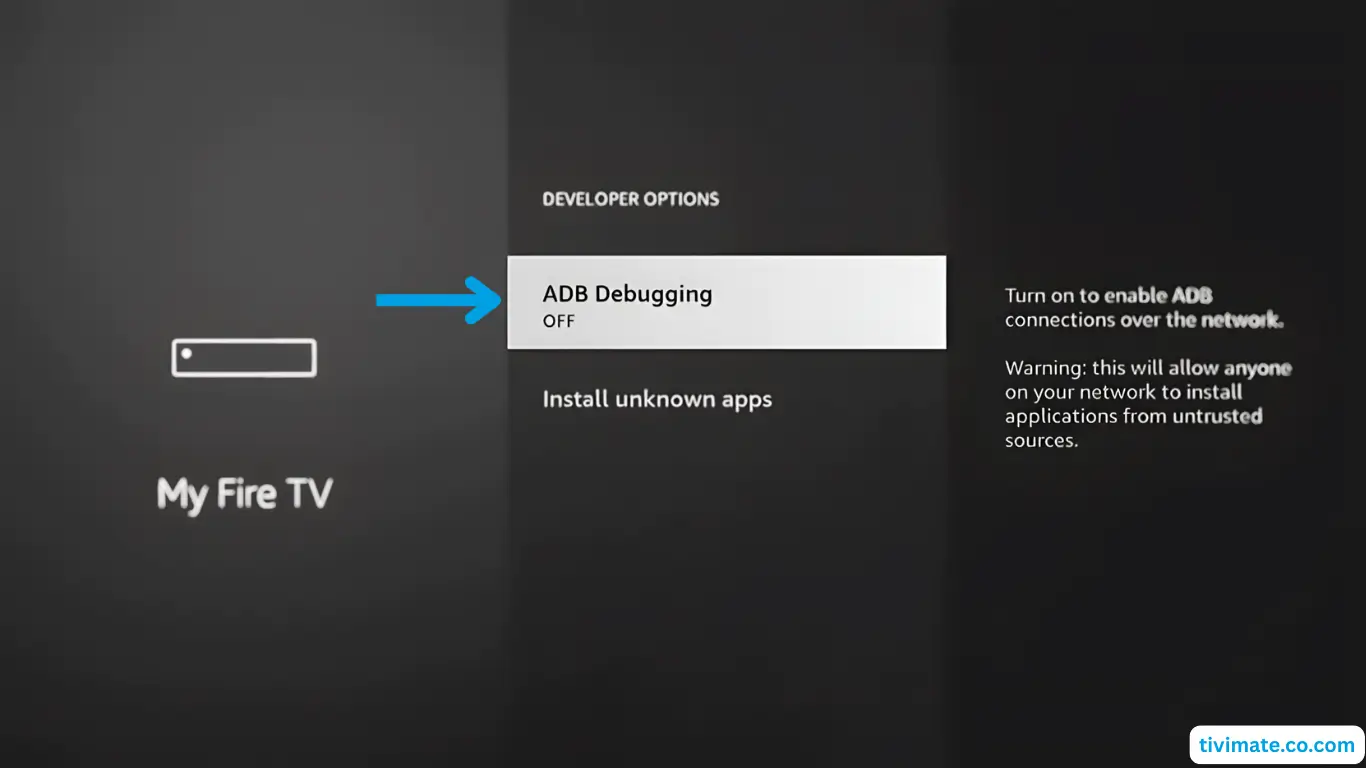
- 10
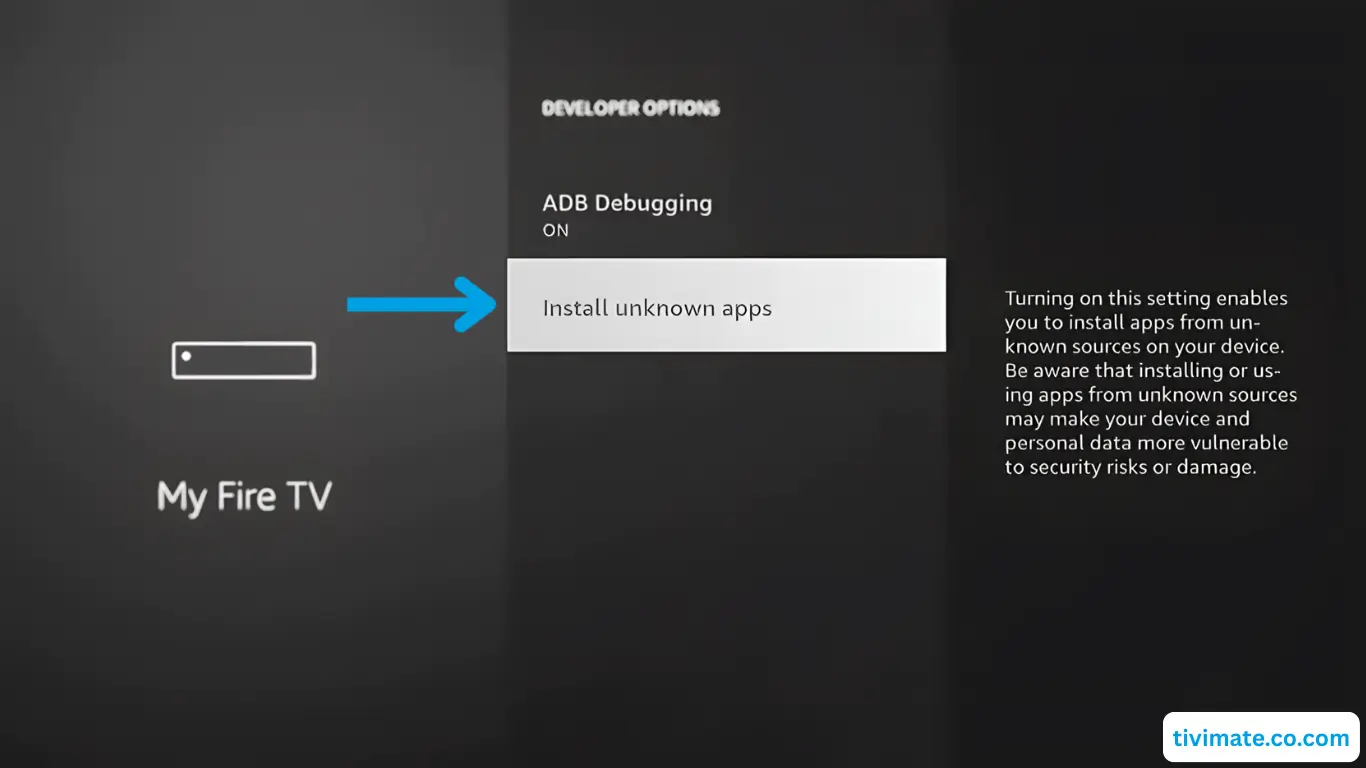
Allow Downloader
Open Install unknown apps and switch Downloader to On.
- 7
- Step 3
Install V12Mate
- 11
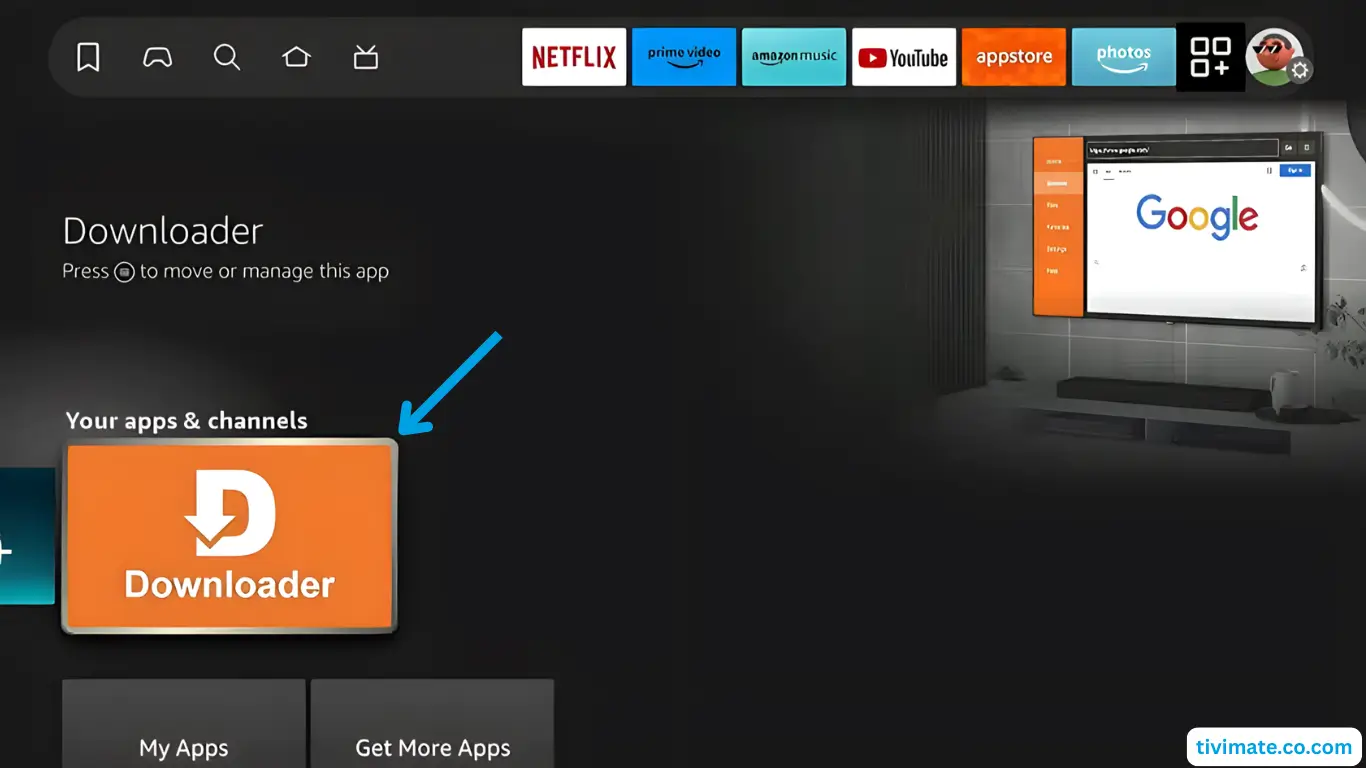
Launch Downloader
Open Downloader from your apps.
- 12
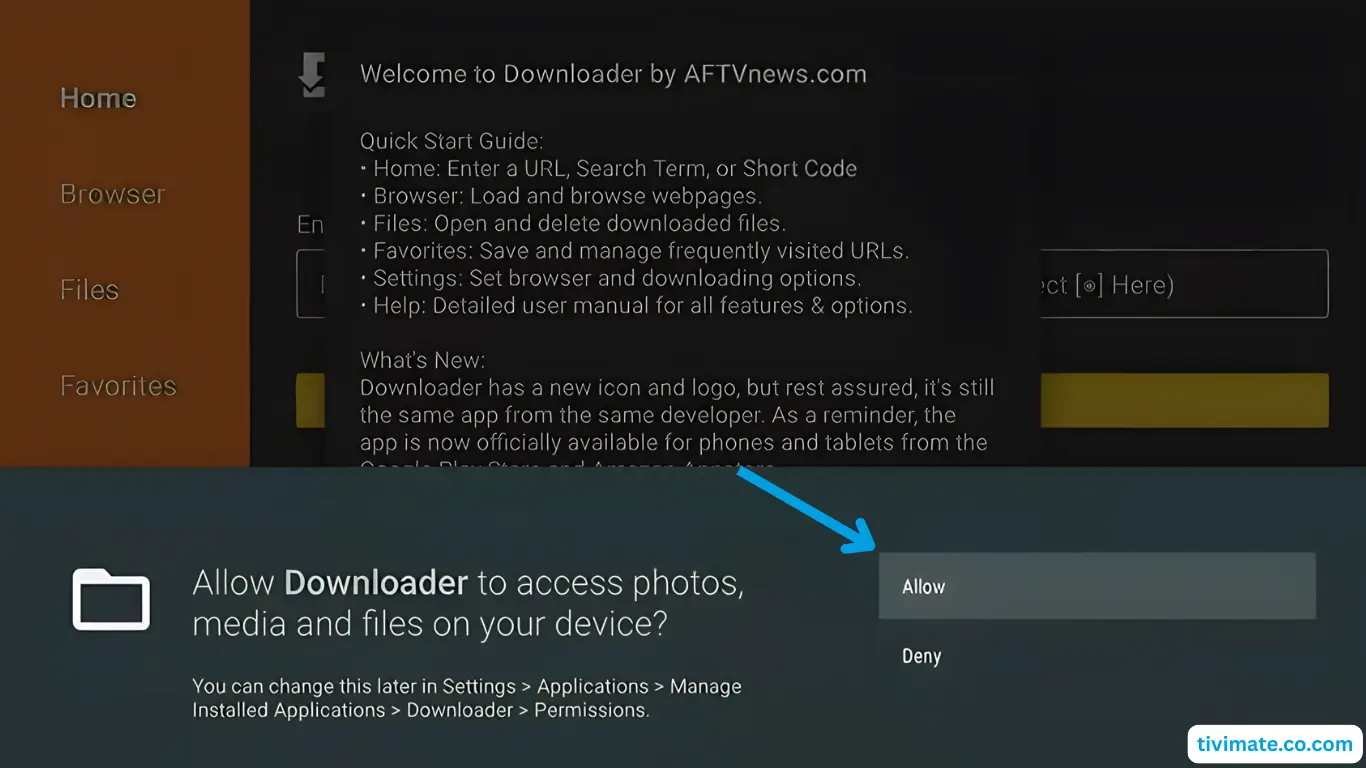
Allow file access
Press Allow, then close the welcome message with OK.
- 13
Enter the V12Mate code
Type the code below in the URL box and press Go.
2494311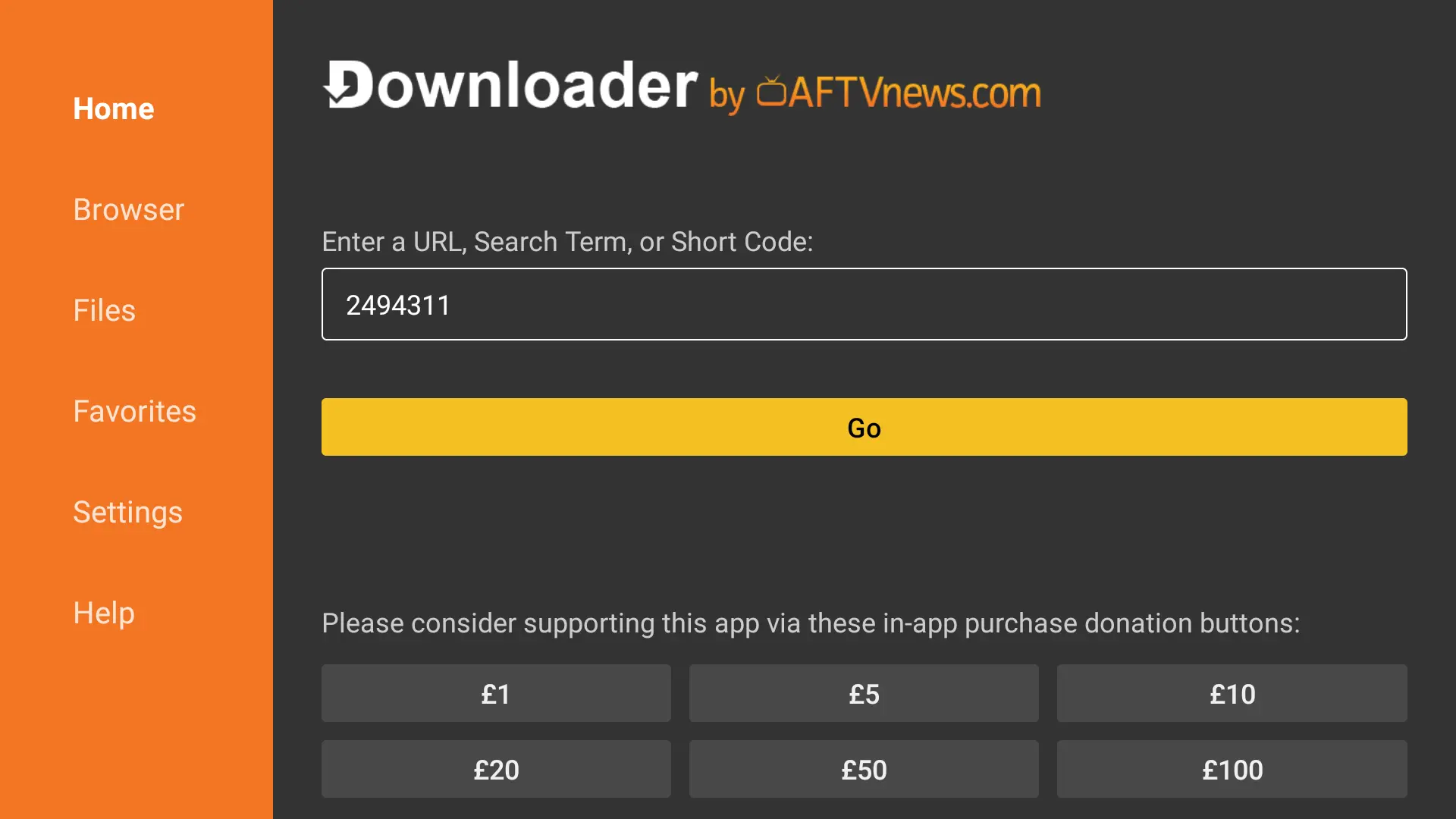
- 14
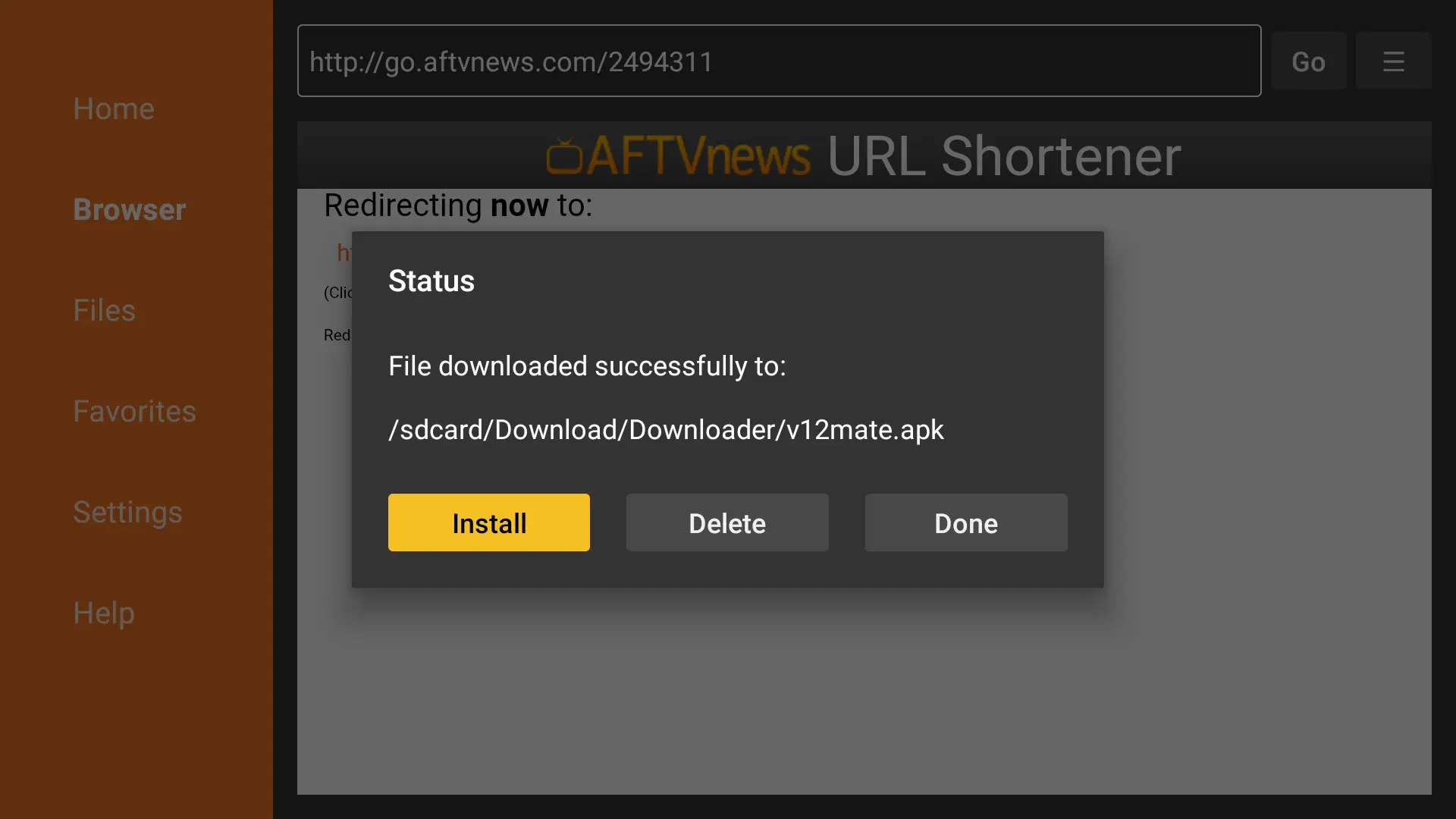
Install the app
Accept the Privacy Policy, press Install (twice if asked) and wait.
- 15
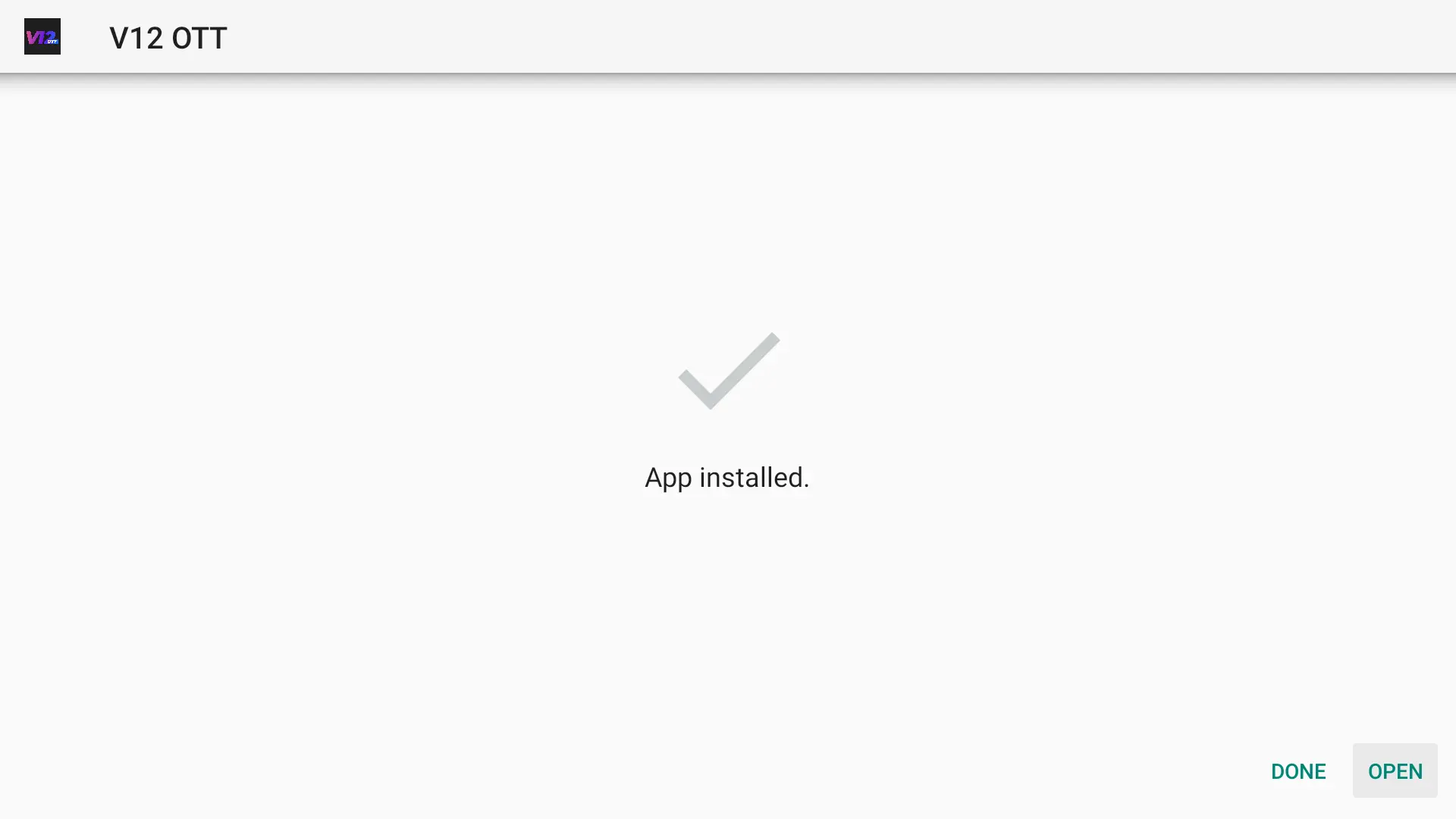
Open V12Mate
When the installation is complete, press Open.
- 11
- Step 4
Log in and watch
- 16
Open V12Mate and add a playlist
Press Add playlist, then choose V12MATE.
If you only see a Cancel button, uninstall any other IPTV player (like TiviMate), restart the device and try again.
- 17
Enter your IPTV North credentials
Type the username and password from your welcome email. V12Mate is our own player, so no server address is needed.
- 18
Load channels and movies
Press Next with TV channels and VOD checked, then wait about 1 minute while everything loads.
- 19
Press Done — you are live!
Give it a few seconds and start watching. The EPG (TV guide) keeps loading in the background — find it under Settings → EPG.
No channels? Open Settings → Playlists → V12Mate → Xtream Codes parameters and check your username and password (they are case-sensitive).
- 16
✅ That's it — happy watching!
Hit a snag? Our support team in Canada is available 24/7 in English and French.
Fire TV Stick — FAQ
What is V12Mate?
V12Mate is the IPTV North media player for Fire TV and Android. It organizes your channels, movies and EPG, and works with an active IPTV North subscription.
Does V12Mate work on every Fire TV model?
Yes, it runs on most Fire TV Sticks and the Fire TV Cube. Keep some free storage and use a stable Wi-Fi connection.
Developer Options is missing — what do I do?
Go to Settings → My Fire TV → About and click the device name (Fire TV Stick) 7 times. Developer Options will then appear.
Android TV setup guide
Chromecast with Google TV, Sony, TCL, Hisense, Philips, Nvidia Shield, Mi Box
Use V12Mate through the Downloader app, or TiviMate from the Google Play Store.
Uninstall TiviMate before installing V12Mate, otherwise V12Mate will not install.
Choose your app
- Step 1
Install Downloader
- 1
Get Downloader from the Play Store
Search Downloader in the Google Play Store and press Install, then Allow and OK.
- 2
Allow unknown apps
Go to Settings → Security & restrictions (or Device preferences → Security) and allow Downloader to install unknown apps.
- 1
- Step 2
Install V12Mate
- 3
Enter the V12Mate code
Open Downloader, type the code below and press Go.
2494311 - 4
Install and open
Accept the Privacy Policy, press Install, wait, then press Open.
- 3
- Step 3
Log in and watch
- 5
Open V12Mate and add a playlist
Press Add playlist, then choose V12MATE.
If you only see a Cancel button, uninstall any other IPTV player (like TiviMate), restart the device and try again.
- 6
Enter your IPTV North credentials
Type the username and password from your welcome email. V12Mate is our own player, so no server address is needed.
- 7
Load channels and movies
Press Next with TV channels and VOD checked, then wait about 1 minute while everything loads.
- 8
Press Done — you are live!
Give it a few seconds and start watching. The EPG (TV guide) keeps loading in the background — find it under Settings → EPG.
No channels? Open Settings → Playlists → V12Mate → Xtream Codes parameters and check your username and password (they are case-sensitive).
- 5
✅ That's it — happy watching!
Hit a snag? Our support team in Canada is available 24/7 in English and French.
Android TV — FAQ
Will V12Mate work on my Android TV?
V12Mate runs on most Android TV devices with Android 5.0 or newer. Check your version under Settings → About.
Is TiviMate made by IPTV North?
No. TiviMate is a third-party player that needs a premium licence for all features. V12Mate is the player we build and support.
Smart TV setup guide
Samsung (Tizen), LG (webOS), Vizio, Hisense (VIDAA) and more
Install Hot Player from your TV app store, then send your IPTV North details to it from your phone or computer.
If your TV has the Google Play Store, follow the Android TV guide instead.
App: Hot PlayerFrom $9 CAD/year
- Step 1
Install Hot Player
- 1
Open your app store
Samsung Apps, LG Content Store, Roku Channel Store…
- 2
Search and install
Search Hot Player (or Hot IPTV) and install it.
- 3
Note your MAC address
Open Hot Player on your TV and write down the MAC address shown on screen.
- 1
- Step 2
Add your IPTV North playlist
- 4
Go to hotplayer.app
On your phone or computer, open hotplayer.app and click Upload list.
- 5
Enter the MAC address
Type your TV MAC address and click Next.
- 6
Choose Xtream Code
Set the source to Xtream Code, enter the host, username and password from your welcome email and click Save.
- 7
Restart Hot Player
Close and reopen Hot Player on your TV — your channels appear.
The Hot Player licence is paid to Hot Player (about $9 CAD/year or $21 CAD lifetime). Channels come from your IPTV North subscription.
- 4
✅ That's it — happy watching!
Hit a snag? Our support team in Canada is available 24/7 in English and French.
Smart TV — FAQ
Hot Player is not in my TV store — what now?
Try changing your TV account region, or use an alternative like IBO Player or GSE Smart IPTV from your TV store.
My channels do not load
Check your IPTV North credentials, your internet connection and that your subscription is active, then restart the app.
Android Phone & Tablet setup guide
Samsung, Pixel, Xiaomi, Oppo and all Android 5.0+ devices
Install a player from Google Play and log in with your IPTV North details.
Choose your app
- Step 1
Install and connect
- 1
Install iMPlayer
Get iMPlayer from the Google Play Store.
- 2
Add a playlist
Open the app, tap Add a playlist and choose XC API.
- 3
Enter your IPTV North details
Choose Xtream Codes / XC API, then enter the Portal URL, username and password from your welcome email.
- 4
Start streaming
Tap Add playlist, wait for the content to load and enjoy.
Streaming uses about 1 GB/hour in SD and 3 GB/hour in HD — use Wi-Fi when you can.
- 1
✅ That's it — happy watching!
Hit a snag? Our support team in Canada is available 24/7 in English and French.
Android Phone & Tablet — FAQ
Can I cast from my phone to my TV?
Yes. Most IPTV apps support Chromecast — look for the cast icon in the player, or use screen mirroring.
iPhone & iPad setup guide
iPhone and iPad (iOS / iPadOS)
Everything installs from the App Store — no jailbreak needed.
Choose your app
- Step 1
Install and connect
- 1
Install iMPlayer
Download iMPlayer – IPTV Player from the App Store.
- 2
Add a playlist
Open the app, tap Add a playlist and choose XC API.
- 3
Enter your IPTV North details
Choose Xtream Codes / XC API, then enter the Portal URL, username and password from your welcome email.
- 4
Start watching
Tap Add playlist and wait for your channels to load.
- 1
✅ That's it — happy watching!
Hit a snag? Our support team in Canada is available 24/7 in English and French.
iPhone & iPad — FAQ
Do these apps work on Apple TV?
Yes, iMPlayer is available on Apple TV. You can also AirPlay from your iPhone or iPad.
Apple TV setup guide
Apple TV HD and Apple TV 4K (tvOS)
Install iMPlayer from the Apple TV App Store and add your IPTV North playlist.
App: iMPlayerFree to try
- Step 1
Install and connect
- 1
Install iMPlayer
Open the App Store on your Apple TV, search iMPlayer and install it.
- 2
Add a playlist
Open the app, select Add a playlist and choose XC API.
- 3
Enter your IPTV North details
Choose Xtream Codes / XC API, then enter the Portal URL, username and password from your welcome email.
- 4
Start watching
Select Add playlist and wait for the channels and EPG to load.
- 1
✅ That's it — happy watching!
Hit a snag? Our support team in Canada is available 24/7 in English and French.
Windows & Mac setup guide
Windows 10/11 PCs and Mac computers
Use a desktop IPTV app, or VLC for a quick test.
Choose your app
- Step 1
Install and connect
- 1
Download the app
Go to iptvsmarters.com, open Downloads and get the Windows or Mac version.
- 2
Install it
Run the installer and click Yes if Windows asks for permission.
- 3
Log in
Open the app → Add new user → Login with Xtream Codes API and enter your IPTV North details.
- 4
Start streaming
Your channels, movies and series load automatically.
A wired Ethernet connection gives the smoothest playback.
- 1
✅ That's it — happy watching!
Hit a snag? Our support team in Canada is available 24/7 in English and French.
Windows & Mac — FAQ
Does VLC work with IPTV North?
Yes, VLC plays your M3U playlist, but a dedicated IPTV app gives you the TV guide, favourites and catch-up.
Roku setup guide
Roku TV, Streaming Stick, Ultra, Express
Add Hot Player from the Roku Channel Store and link your IPTV North playlist to its MAC address.
App: Hot PlayerFrom $9 CAD/year
- Step 1
Install Hot Player
- 1
Open your app store
On your Roku, go to Streaming Channels → Search.
- 2
Search and install
Search Hot Player (or Hot IPTV) and install it.
- 3
Note your MAC address
Open Hot Player on your Roku and write down the MAC address shown on screen.
- 1
- Step 2
Add your IPTV North playlist
- 4
Go to hotplayer.app
On your phone or computer, open hotplayer.app and click Upload list.
- 5
Enter the MAC address
Type your Roku MAC address and click Next.
- 6
Choose Xtream Code
Set the source to Xtream Code, enter the host, username and password from your welcome email and click Save.
- 7
Restart Hot Player
Close and reopen Hot Player on your Roku — your channels appear.
The Hot Player licence is paid to Hot Player (about $9 CAD/year or $21 CAD lifetime). Channels come from your IPTV North subscription.
- 4
✅ That's it — happy watching!
Hit a snag? Our support team in Canada is available 24/7 in English and French.
Roku — FAQ
Where is the MAC address on Roku?
It is displayed on the first screen of Hot Player, under the Account section.
Formuler / Dreamlink setup guide
Formuler Z8, Z10, Z11, GTV · Dreamlink boxes
Formuler and Dreamlink log in with your username and password — no MAC registration needed.
Choose your app
- Step 1
Add a portal
- 1
Open MyTVOnline
Launch MyTVOnline 2 or 3 from the Formuler home screen.
- 2
Add a portal
Go to Menu → Connections → Add portal.
- 3
Enter your details
Type your Portal URL, enable Login required, then enter your username and password.
- 4
Connect
Press Connect and your channels load.
- 1
✅ That's it — happy watching!
Hit a snag? Our support team in Canada is available 24/7 in English and French.
Formuler / Dreamlink — FAQ
My channels do not load
Make sure Login required is on, check your credentials and internet connection, then restart the app.
BuzzTV setup guide
BuzzTV XPL 3000, XRS 4000/4500, E2000 and all BuzzTV Android boxes
Log in with the built-in XC API option — no extra app to install.
App: XC API loginBuilt-in
- Step 1
Set up XC API
- 1
Open Server settings
From the BuzzTV home screen, open Server settings.
- 2
Add an XC API login
Choose XC API login → Add XC API login.
- 3
Enter your details
Portal name (any), Portal URL, username and password from your welcome email.
- 4
Connect and watch
Press Connect (or Save), go back Home and open Live TV.
- 1
✅ That's it — happy watching!
Hit a snag? Our support team in Canada is available 24/7 in English and French.
MAG Box setup guide
All MAG models
IPTV North no longer supports MAG boxes. For the best experience, switch to one of the devices above — a Fire TV Stick or an Android TV box is the easiest upgrade.
This device is not supported
Pick another device above — a Fire TV Stick or Android TV box works best with IPTV North.
See the Fire TV Stick guide →Installation questions
Everything else you might need before you start streaming.
Where are my login details and server URL?
You'll find your username, password and server URL in the welcome email we send as soon as your order is confirmed. If it isn't in your inbox, look in your spam or junk folder, or write to our support team.
Can I set up IPTV North on several devices?
Yes, install the app on as many devices as you want. How many screens can play at the same moment depends on the plan you chose (from 1 to 5 devices).
What's the best device for IPTV North?
For the smoothest viewing, we recommend a Fire TV Stick 4K or an Android TV box running our free V12Mate player: you get the complete TV guide and fast channel changes.
Will I need a VPN?
In most cases, no. A VPN can be useful if your internet provider throttles streaming during evening peak hours.
Why do my channels keep buffering?
Reboot your router and device, switch to an Ethernet cable or 5 GHz Wi-Fi, and check that you have at least 25 Mbps for 4K. You'll find more solutions in our buffering guide.